
How to Convert Text to Speech on Android (2026 Guide)
VoxLibro Admin
· 5 min read
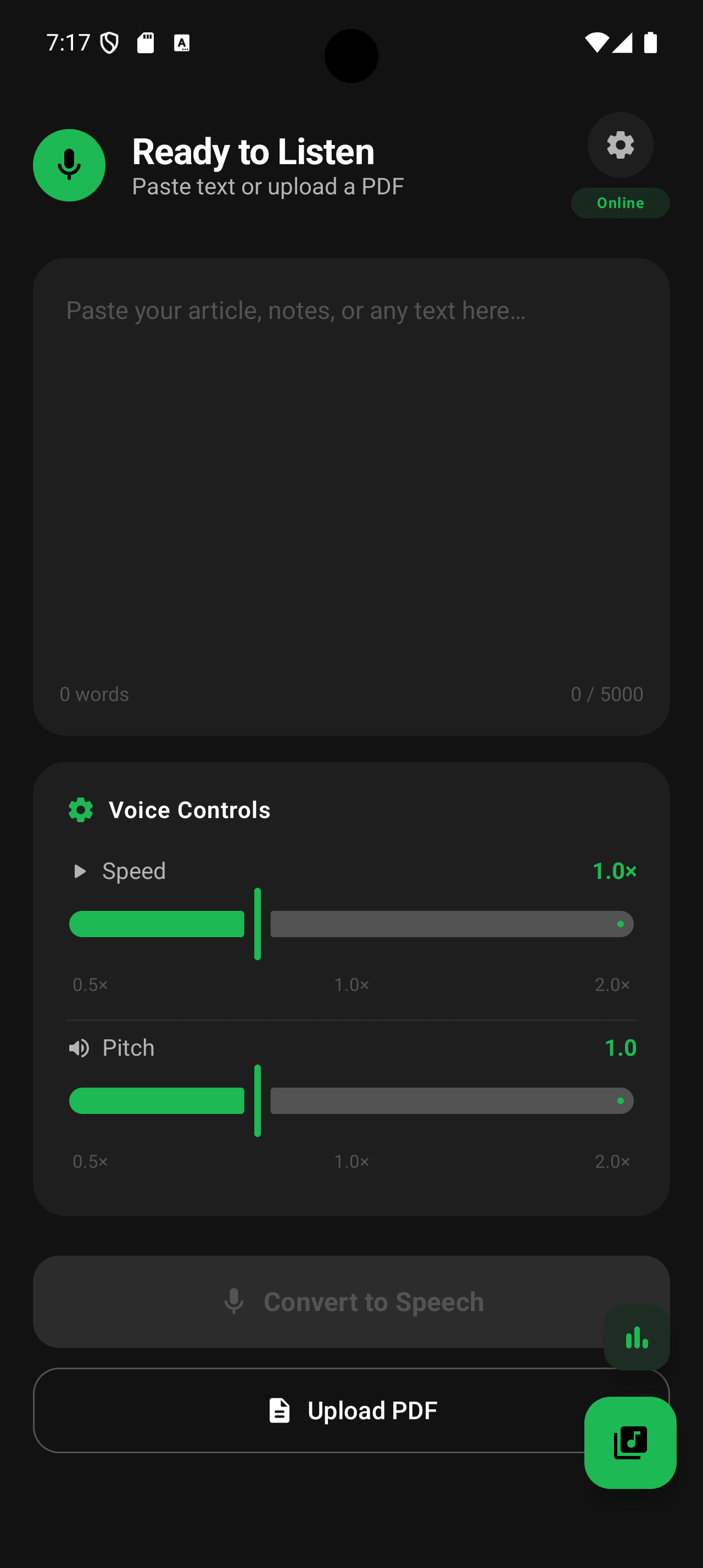
Reading everything on your phone screen is not always practical. If you want to learn how to convert text to speech on Android, you are in the right place. This guide covers every built-in method, plus the best apps to use, including VoxLibro. By the end, you will know exactly how to turn any text into natural-sounding speech on your device.
Why Convert Text to Speech on Android?
Text-to-speech (TTS) turns written words into spoken audio. Students use it to review notes while walking. Teachers use it to check how their handouts sound out loud. Professionals use it to get through long emails and reports during a commute. As a result, TTS has become one of the most useful accessibility features on any smartphone. For example, someone with dyslexia or low vision can rely on TTS to access content that would otherwise be hard to read. In contrast, someone without any reading difficulty might just use it to multitask. Either way, the benefits are similar: less eye strain, more flexibility, and faster learning.
How to Convert Text to Speech on Android Using Built-In Tools
Every modern Android phone already includes a text-to-speech engine. You do not need to install anything extra to get started. However, the exact steps depend on which built-in tool you use.
Turn On Select to Speak
Select to Speak is Google's simplest reading tool. It lets you tap any text on the screen and hear it read aloud instantly.
Open Settings and tap Accessibility.
Tap Select to Speak.
Turn on the toggle and grant the required permissions.
Tap the new floating icon, then tap any text on your screen to hear it.
This method works well for short snippets, like a single article or message. For longer documents, though, a dedicated reading app works better.
Use TalkBack for Full-Screen Reading
TalkBack is Android's full screen reader. It reads out everything on the display, not just selected text. Because of this, TalkBack suits users who need constant audio feedback rather than occasional reading help. You can turn it on from Settings, then Accessibility, then TalkBack. Keep in mind that TalkBack also changes how gestures work across your whole phone, so it takes some getting used to.
How Google's Text-to-Speech Engine Works
Most TTS apps, including VoxLibro, rely on the same underlying engine: Google Text-to-Speech, or a similar engine from your phone's manufacturer. You can find this in Settings under System, then Languages & Input, then Text-to-Speech Output. Additionally, you can download extra voices, adjust the default speech rate, and change the pitch from this same menu. According to Android's official accessibility documentation, keeping this engine updated improves voice quality and adds new languages over time. However, the engine on its own does not offer features like reading statistics, offline libraries, or streaks. That is where a dedicated app comes in.
Best Apps for Converting Text to Speech on Android
The Play Store has many text-to-speech apps, but they are not all equal. Some require a subscription. Others only work online. Still others limit how many characters you can convert per day. If you want a straightforward, free option, VoxLibro is worth trying.
VoxLibro includes:
Offline speech support, so you can listen without an internet connection
Multiple voice options with a voice preview before you commit
Adjustable speech speed for faster or slower listening
Clipboard detection, so copied text is ready to convert instantly
Reading statistics and a reading streak to track your listening habit
A lightweight, modern interface built for speed
In short, VoxLibro was designed for students, teachers, and professionals who want a clean way to convert text to speech without paying for premium features or losing access offline.
Step-by-Step: Converting Text to Speech with VoxLibro
Download VoxLibro from the Google Play Store.
Open the app and paste or type your text.
Choose a voice and preview it before you start.
Adjust the speech speed to match your listening preference.
Tap play and listen. You can pause, share, or delete the speech afterward.
That is the entire process. There is no sign-up wall and no confusing settings menu to dig through.
Tips to Get the Most Out of Text-to-Speech on Android
Start with a slower speech speed, then increase it gradually as you get used to listening instead of reading
Use headphones in noisy environments for clearer audio
Break long documents into smaller sections so you can track progress more easily
Preview a few different voices before settling on your favorite
Turn on offline mode before a flight or commute with no signal
Frequently Asked Questions
Does Android have text-to-speech built in?
Yes. Every modern Android device includes a text-to-speech engine, along with accessibility tools like Select to Speak and TalkBack.
Can I convert text to speech without an internet connection?
Yes, as long as you use an app or engine with offline support. VoxLibro, for example, supports offline speech conversion.
Is VoxLibro free to use?
Yes. VoxLibro is a free Android app for converting text to speech.
Conclusion
Learning how to convert text to speech on Android does not have to be complicated. You can start with built-in tools like Select to Speak or TalkBack, adjust Google's text-to-speech engine for better voice quality, or install a dedicated app like VoxLibro for offline support, voice choice, and reading stats. Whichever method you choose, converting text to speech can save you time and make studying, working, or reading far less tiring on your eyes.