
Convert Article to Audio: A Simple Guide
VoxLibro Admin
· 5 min read

Some articles are worth reading. Others are worth listening to instead. This is especially true for long ones you'll never get to on a busy day. Learning how to convert article to audio takes just a minute. It turns your reading list into something you can get through on a walk or a commute. This guide covers the easiest ways to do it on Android.
Why Turn an Article Into Audio

Reading takes focus. Listening does not. When you turn text into audio, you free up your eyes for something else. You can walk, drive, or exercise while you listen. For example, you can save a long article in the morning. Then, you can listen to it on your commute instead of scrolling past it all day. As a result, articles stop piling up unread in browser tabs. However, not every method works the same way. It helps to know your options before you pick one.
Method 1: Convert Article to Audio by Pasting Text
The simplest way to convert article to audio is to copy the text and paste it into a dedicated app. This works with news sites, blog posts, and newsletters alike.
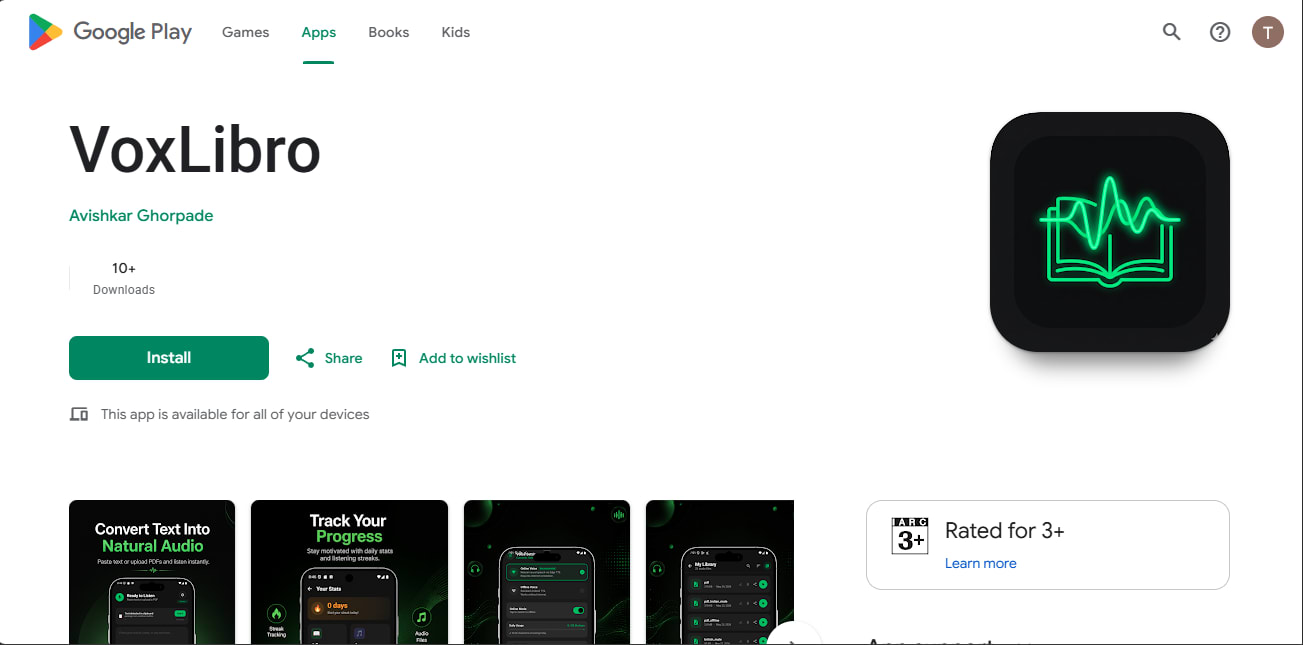
A text-to-speech app for Android like VoxLibro lets you paste text and start listening right away. It also includes a few extras that make this easier:
- Offline speech support, so a weak signal won't interrupt playback
- Adjustable speech speed for dense or light articles
- Voice preview before you commit to a voice
- Clipboard detection, so copied text is ready to convert instantly
Good for: Any article you can select and copy, including newsletters and blog posts.
Limitation: Requires copying the text manually, rather than opening a link directly.
This kind of article to speech workflow takes just a few taps once you get used to it. In short, you paste, pick a voice, and press play.
[INTERNAL LINK OPPORTUNITY: link to a post on "Best Android Accessibility Settings You Should Know"]
Method 2: Use Android's Built-In Select to Speak
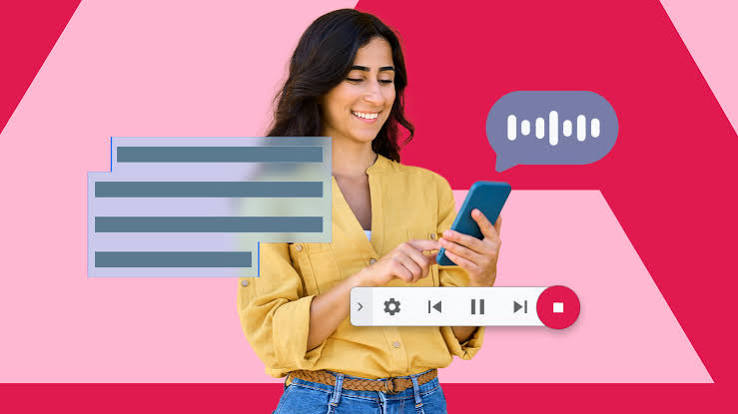
Android includes a system tool called Select to Speak. You'll find it under Settings, then Accessibility. Turn it on, then open any article in your browser. Tap the text, and it reads aloud instantly.
This is one of the simplest ways to build a read articles aloud app habit. Meanwhile, it requires no new installs at all, since the tool is already on your phone.
Good for: A quick listen without leaving your browser or installing anything.
Limitation: It only reads what's visible on screen. Long articles need repeated taps as you scroll.
Method 3: Use a Dedicated Audio Article Converter
Some apps are built specifically as a text to speech article reader, with a focus on natural-sounding voices. Speechify is one popular option. It can read articles, PDFs, and even photographed text. Its narration sounds more human than most system voices.
Good for: Readers who care most about voice quality and expression.
Limitation: The free version has limits. The most natural voices sit behind a paid plan.
Which Method Fits Your Reading Habit
Your best choice depends on how often you listen to articles online. It also depends on how much control you want. For example, Select to Speak is perfect for the occasional article you stumble across mid-scroll. In contrast, a dedicated app makes more sense for daily listening, since it adds offline playback and speed control. If voice quality matters most, however, a natural-sounding option like Speechify is worth the extra step.
For instance, if you want to compare more apps side by side, this roundup is a good place to start. It covers the best free text-to-speech apps for Android and breaks down how a few popular options stack up.
Building a Listening Habit
Converting one article is easy. Making it a habit takes a bit more structure. Pick a regular time to listen, like a commute or a lunchtime walk. Save articles as you find them during the day. Then, batch-listen later instead of reading each one on the spot. Over time, this turns your reading list from a source of guilt into something you actually finish.
Common Mistakes to Avoid
- Trying to listen to dense, technical articles at full playback speed
- Switching apps constantly instead of sticking with one for a few weeks
- Listening in noisy places without headphones, which makes it hard to follow along
- Saving too many articles at once, which makes the backlog feel overwhelming again
Frequently Asked Questions
How do I convert an article to audio for free?
Copy the article text and paste it into a free text-to-speech app. You can also use Android's built-in Select to Speak tool to have it read aloud instantly.
Can I listen to a news article without an app?
Yes. Android's Select to Speak tool works inside your browser. You can tap any visible article text and hear it read aloud without installing anything extra.
What's the best app to convert article to audio on Android?
It depends on your needs. For instance, Speechify offers natural-sounding voices for longer articles. A lightweight app like VoxLibro works well for quick, offline listening.
Conclusion
You don't need special skills to convert article to audio. Paste the text into an app like VoxLibro. Tap through Android's Select to Speak. Or, reach for a voice-focused app like Speechify if narration quality matters most to you. Pick the method that fits how you read. As a result, your backlog of saved articles becomes something you actually get through, instead of something you feel guilty about.