
How to Read PDF Aloud on Android (2026 Guide)
VoxLibro Admin
· 7 min read

Long PDFs are hard to get through on a small screen. A research paper, a work report, a scanned handout — they all pile up fast. Listening instead of reading solves that problem. If you want to read PDF aloud on Android, there are a few different routes. Each one works better in a different situation. This guide walks through the main methods, when to use each, and what to do when a PDF refuses to read at all.
Why Listen to a PDF Instead of Reading It
Reading long PDFs on a small phone screen gets tiring fast. Dense reports and academic papers make it worse. When you read PDF aloud on Android, you can listen while commuting, exercising, or doing chores. You don't have to scroll through pages one at a time. This same idea applies beyond PDFs too — for example, many students also listen to study notes instead of reading them to fit more review into a busy day. For example, an office worker can listen to a long report during a drive instead of blocking out desk time. As a result, PDFs stop piling up unread in a downloads folder. However, not every method works for every type of PDF. It helps to know your options before you pick one.
Method 1: Adobe Acrobat Reader's Built-In Read Aloud
Adobe Acrobat Reader has a Read Aloud feature built right into the app. It's free to use on Android. According to Adobe's own documentation, the feature reads your document out loud. You can pause it, replay it, or adjust the speed and language, all from the same menu.
How to Use It

Open your PDF in Adobe Acrobat Reader.
Tap the menu and select Read Aloud.
Use the Pause and Play buttons to control playback.
Tap the speed control to adjust how fast it reads.
You can also select just one block of text and tap Read Aloud for that section. This is handy when you only need one paragraph read back to you.
When It Doesn't Work
Read Aloud has a few real limits. It won't work on password-protected files, files in an unrecognized language, or scanned PDFs that haven't been through OCR. Those scanned PDFs are really just images of text, not actual readable text. Because of this, an old scanned handout or a photographed page often stays silent, no matter how many times you tap Read Aloud.
Method 2: OCR First, Then Read Aloud
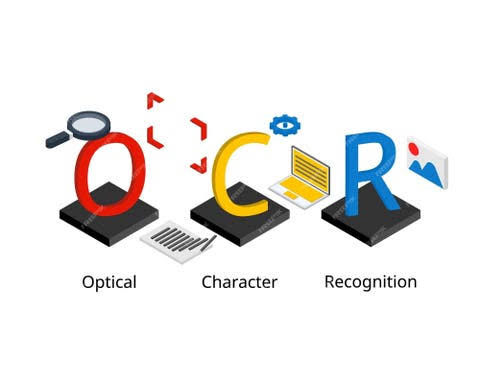
If your PDF is scanned or image-based, text-to-speech tools can't read it at all. There's no real text to convert, just a picture of text. In this case, the PDF needs OCR first. OCR stands for Optical Character Recognition, and it turns the image into real, readable text. Once that's done, any read-aloud tool can handle it normally, including Acrobat's.
Good for: Scanned textbook pages, old handouts, or photographed documents.
Limitation: Some PDF apps lock full OCR behind a paid plan. Check before you assume it's free.
Method 3: A Dedicated Text-to-Speech App
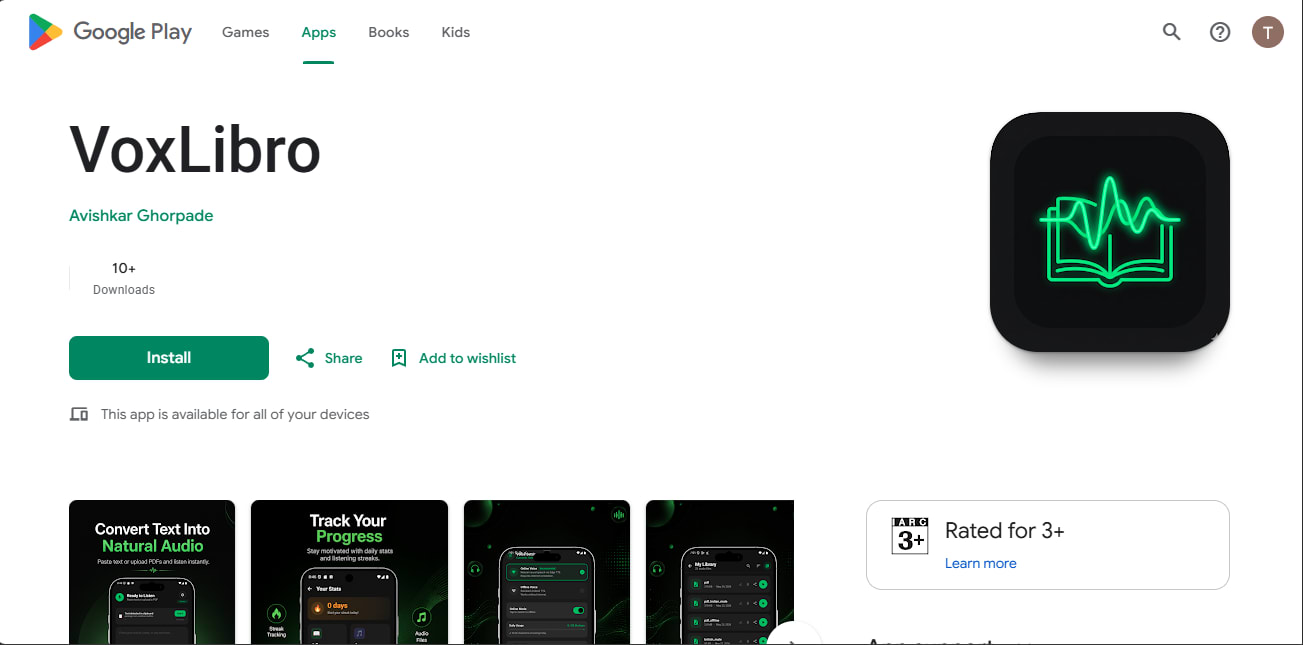
Some people skip the PDF viewer's built-in feature entirely. Instead, they convert text into a separate reading app. This works well for notes, excerpts, or short sections pulled from a PDF. A text to speech PDF app like VoxLibro lets you paste or type text and listen right away. If you want to compare your options first, this roundup of the best free text-to-speech apps for Android breaks down how a few popular apps stack up. It also adds a few extra conveniences:
Offline speech support, so a weak signal won't interrupt playback
Adjustable speech speed for dense or light material
Voice preview before you commit to a voice
Clipboard detection, so copied text from a PDF is ready to convert right away
Good for: Reading specific excerpts, summaries, or notes pulled from a longer PDF, rather than the whole file.
Limitation: Works best with copied or typed text, not a full PDF file opened directly.
Method 4: Android's Built-In Select to Speak
Android also has a system tool called Select to Speak. You'll find it under Settings, then Accessibility. Turn it on, then tap any visible text on your screen. This includes text open in a PDF viewer. It reads aloud instantly. This works well if you just want to listen to PDF android content in short bursts, without opening a separate app. If you want the fuller picture of how Android handles text-to-speech beyond this one tool, this guide on how to convert text to speech on Android covers every built-in method in detail.
Good for: A quick read of a short passage without switching apps or copying text.
Limitation: It only reads what's on your screen right now. Long documents mean repeated taps as you scroll.
Best Way to Read PDF Aloud on Android by File Type
The best way to read pdf aloud on android depends on two things: the type of PDF, and how you plan to listen. For example, a clean, text-based report works well with Adobe's built-in Read Aloud. It needs no extra steps. A scanned worksheet is different — it needs OCR first, before anything can read it. If you only need to hear one paragraph or a set of notes copied from a PDF, a dedicated app with a strong PDF read aloud feature can help. VoxLibro, for example, is often faster than opening the whole file in a viewer.
Which Method Should You Use?
Your best choice comes down to the same two things. For example, a clean, text-based report works well with Adobe's built-in Read Aloud, since it needs no extra steps. A scanned worksheet needs OCR first. And if you only need one paragraph or a few notes copied from a PDF, a dedicated app like VoxLibro is often the faster choice. It beats opening the whole file just to hear one section.
Frequently Asked Questions
Can Android read a PDF aloud for me?
Yes. You can use Adobe Acrobat Reader's built-in Read Aloud feature, a dedicated text-to-speech app, or Android's Select to Speak tool. Which one you pick depends on the PDF and how you want to listen.
Why won't my PDF read aloud on Android?
This usually happens with scanned or image-based PDFs. Text-to-speech tools can only read actual text, not a picture of text. The PDF needs OCR first to turn the scanned image into readable text.
What's the best free way to read a PDF aloud on Android?
Adobe Acrobat Reader's free Read Aloud feature works well for standard, text-based PDFs. For notes or excerpts you want to convert quickly, a lightweight app like VoxLibro is a simpler offline option. It also works well when you just want to convert PDF to audio android for a short excerpt you paste in manually.
Conclusion
There's more than one way to read PDF aloud on Android. The right one depends on what you're working with. Use Adobe Acrobat Reader for standard text-based files. Run scanned documents through OCR first. Reach for a lightweight, hands-free PDF reading option like VoxLibro when you just need a quick excerpt or a set of notes read back to you. Once you match the method to the file, listening to PDFs becomes just another way to get through your reading list. No extra desk time required.